Guide · 5 minutes · no coding
Get a weekly Oura health report from your AI agent
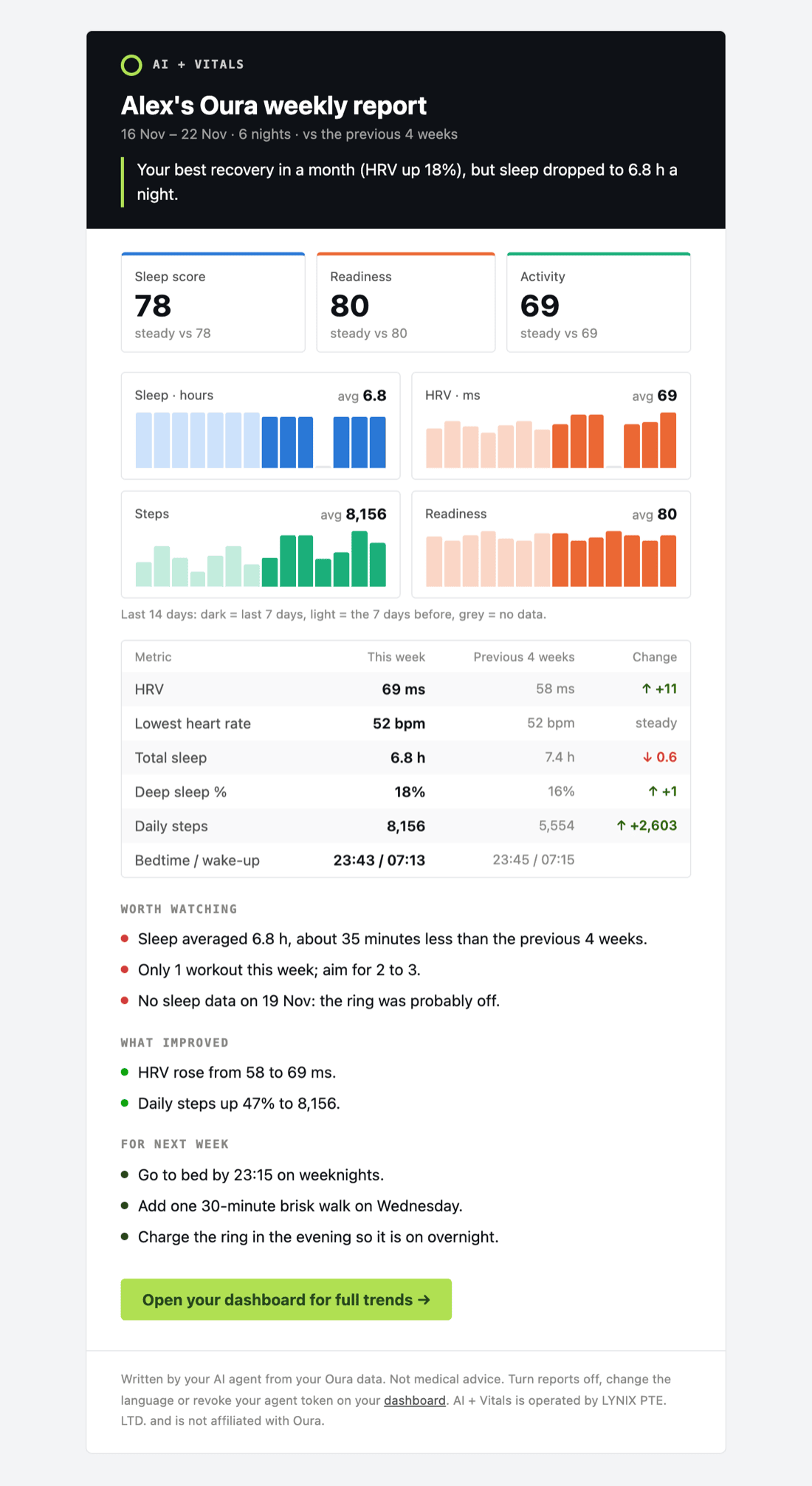
Every Monday your AI agent reads last week's Oura data, compares it with the four weeks before, and emails you a short report: what to watch, what got better, and what to do next week.
Before you start
- An Oura Ring with an active Oura Membership. Oura only shares Gen3 and Ring 4 data with other apps while your membership is active.
- A Google account to sign in.
- Claude (the Claude Code desktop app, the terminal version, or claude.ai/code). ChatGPT users, see the ChatGPT section.
1Sign in with Google
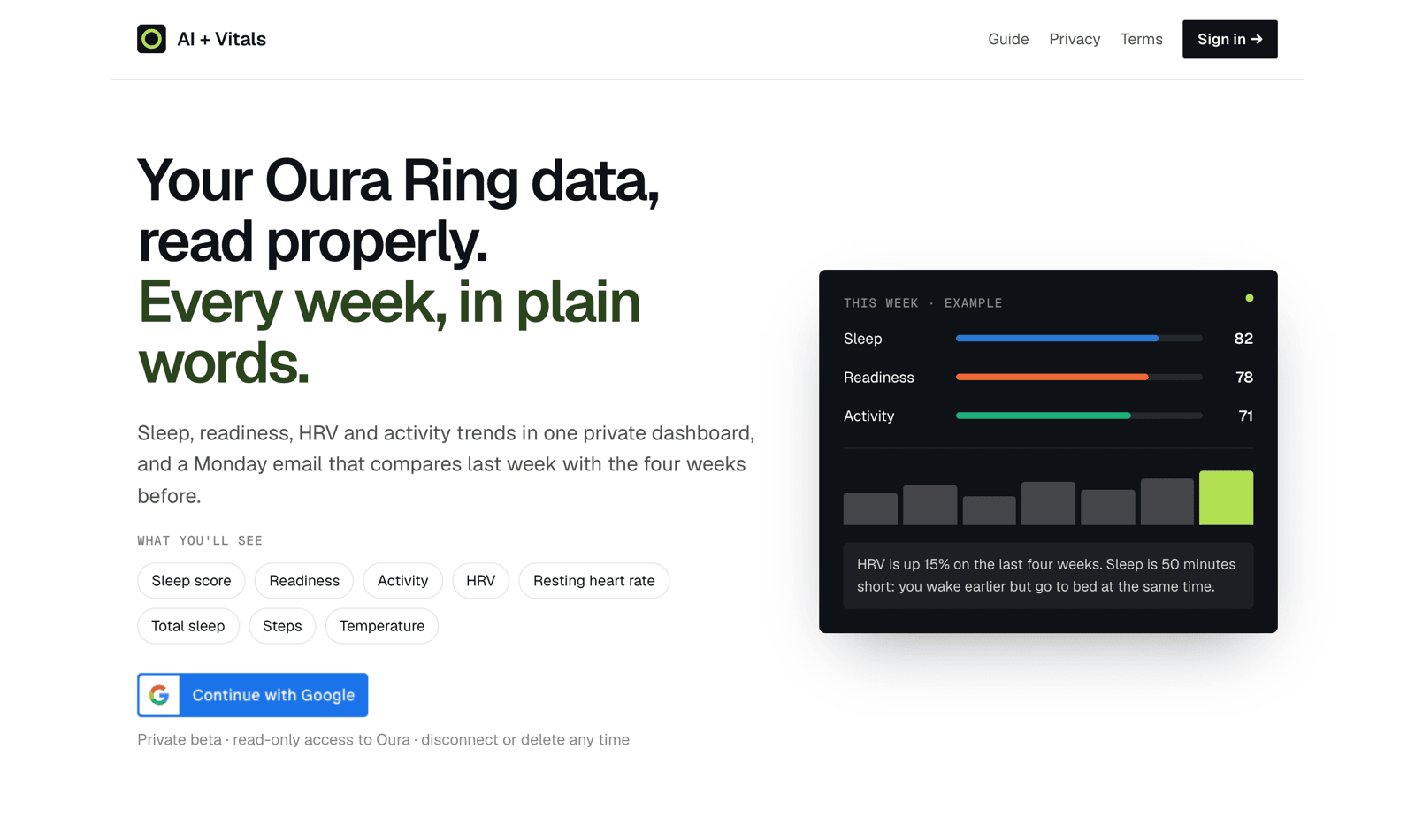
Open aiplusvitals.com and click Continue with Google. We only receive your name, email address and profile picture.
2Connect your Oura Ring
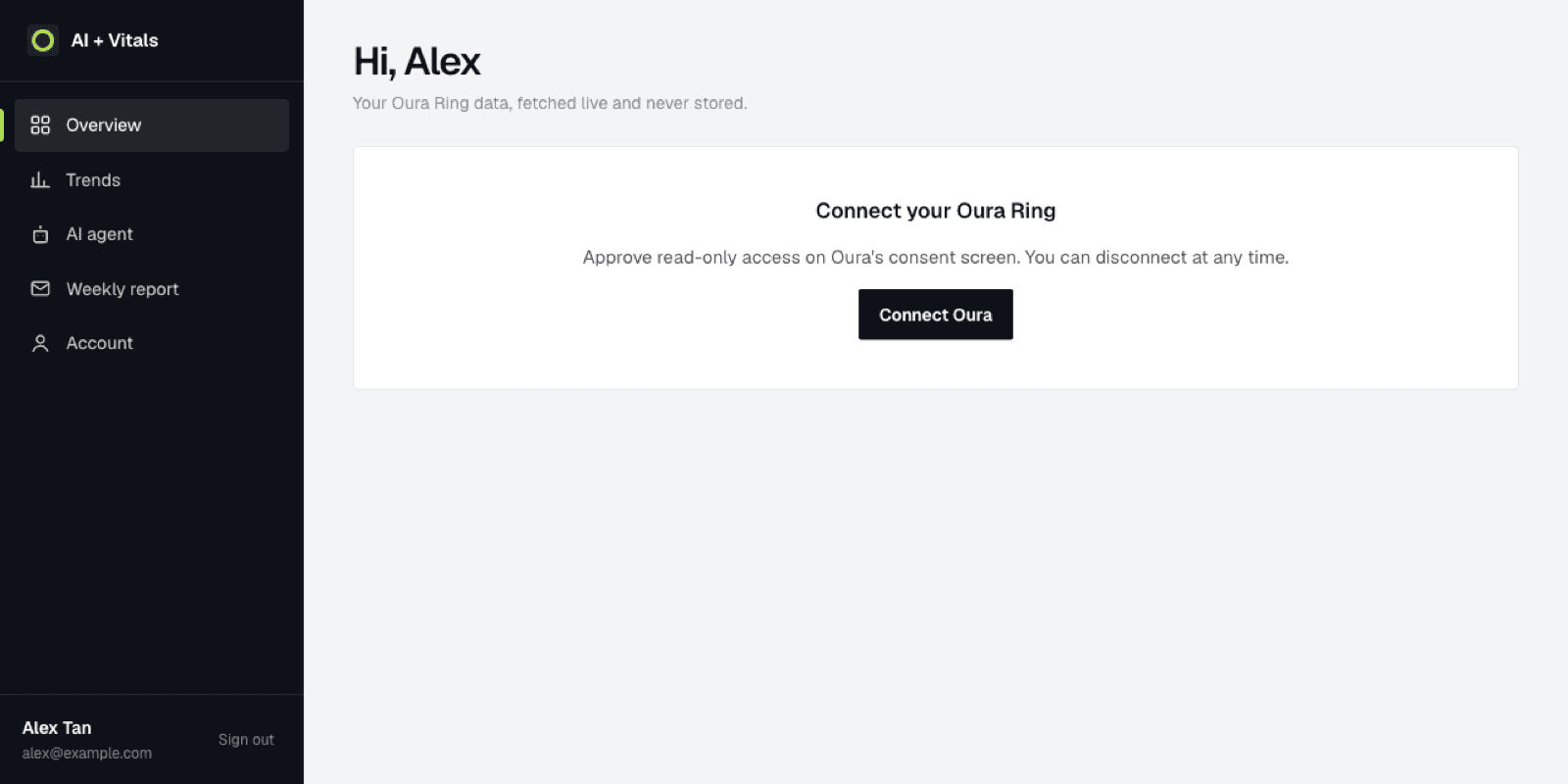
After you sign in you land on your dashboard. Click Connect Oura.
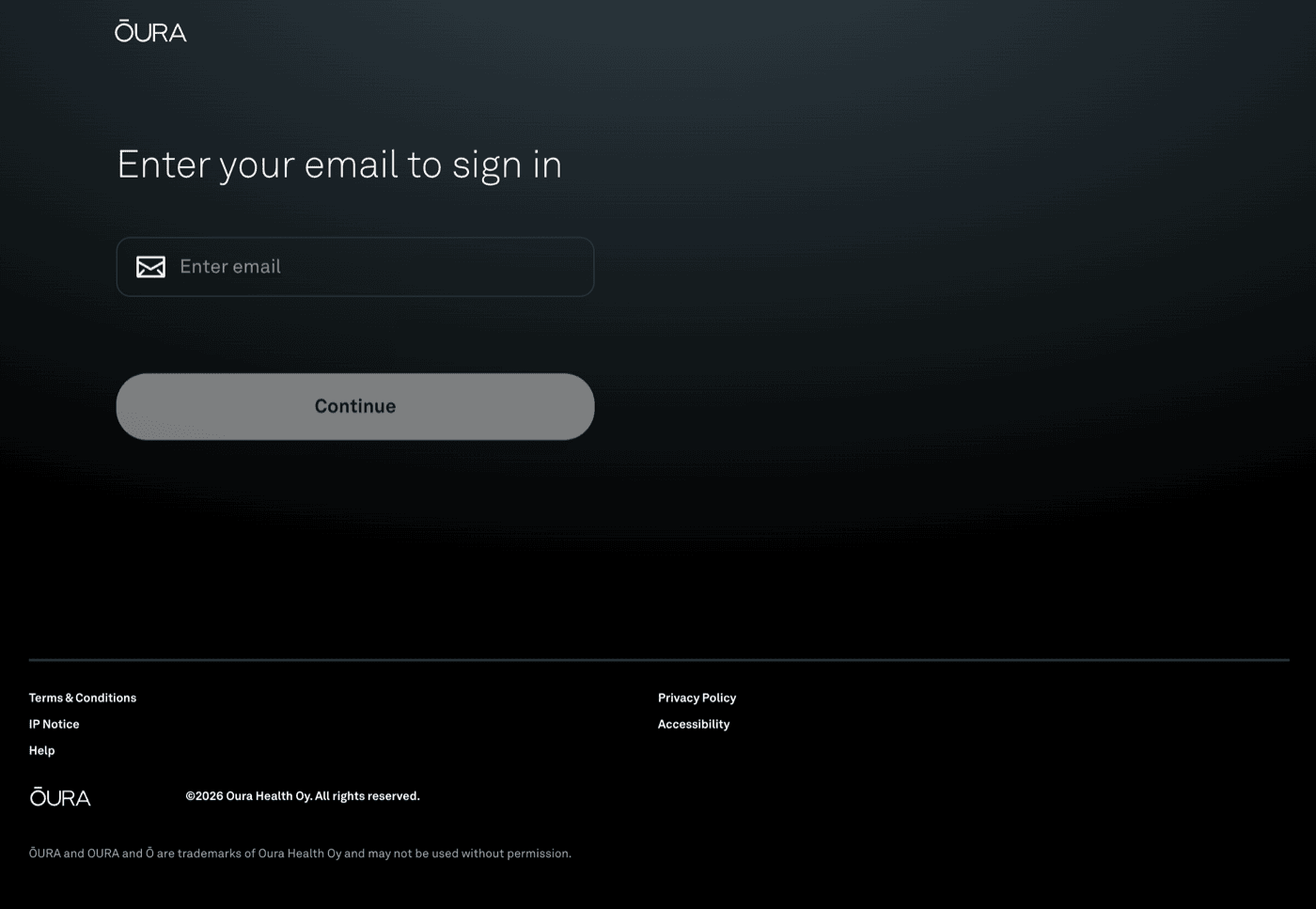
Oura's own website opens. Sign in with the email address you use in the Oura app, then turn on all the switches on the next screen and click Accept. Access is read-only: we can read your data, never change it.
Tip: if some switches are off, parts of your report (for example sleep or heart rate) will be empty. You can reconnect any time to change them.
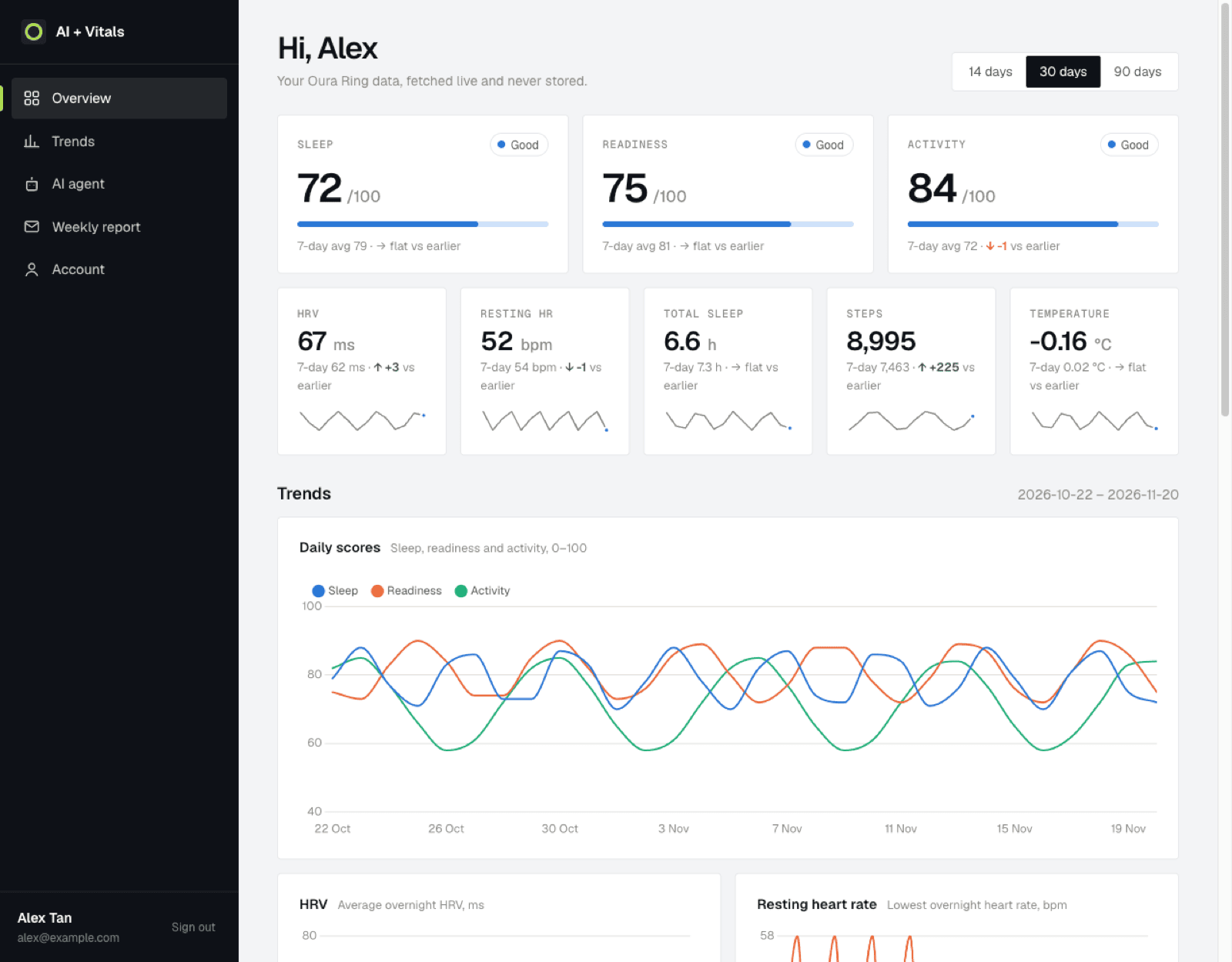
You're back on your dashboard and your sleep, readiness, HRV and activity appear within a few seconds.
3Copy the message for your AI agent
On the dashboard, scroll to Reports from your AI agent (or click AI agent in the menu) and click Create token and copy message. Then click Copy message.
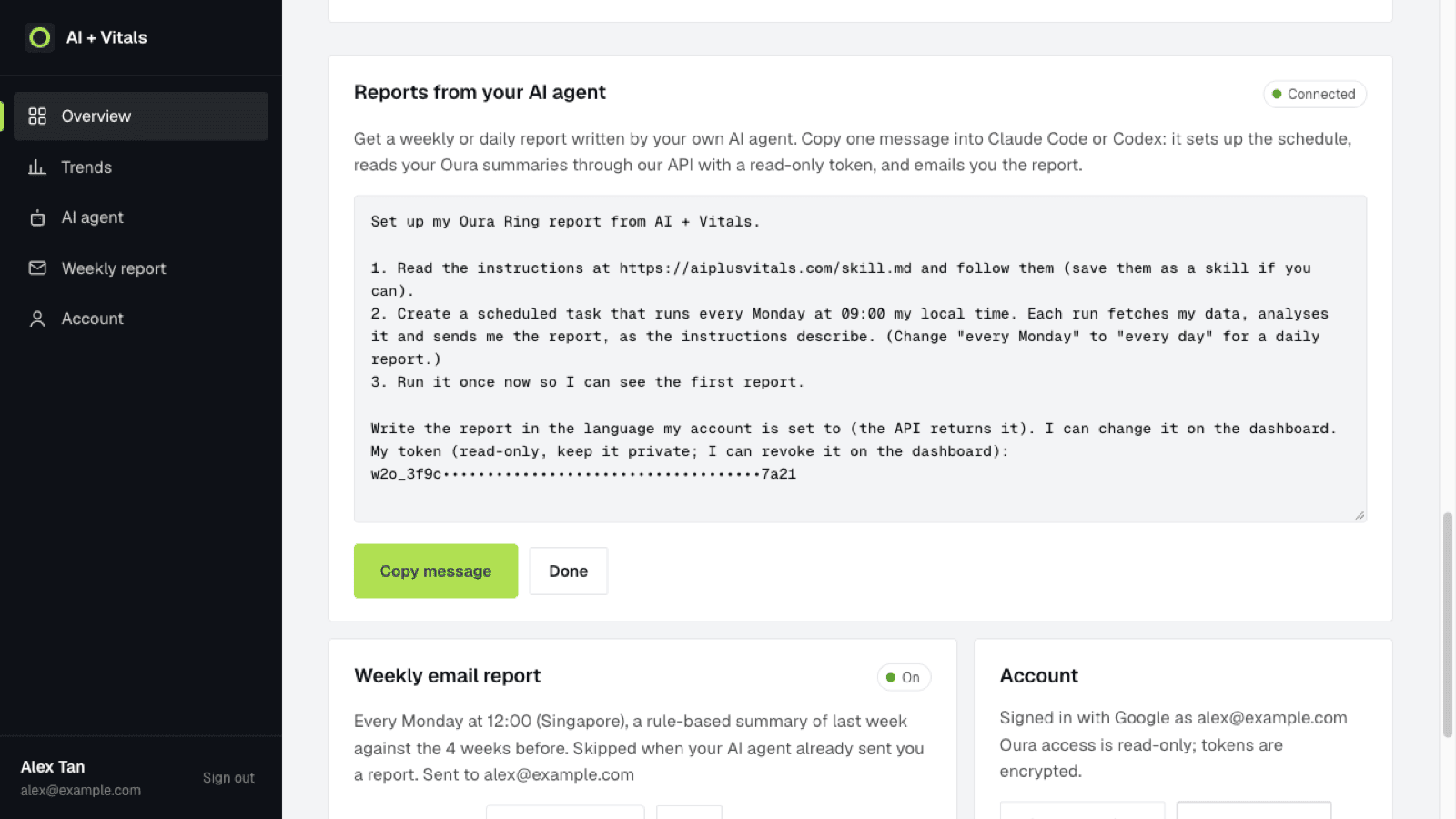
The token is a read-only key that lets your agent read your Oura summaries and email you the report. It cannot change anything. Keep it private, like a password. If you lose it or share it by mistake, click New token and message (the old one stops working) or Revoke agent access.
4Paste it into Claude
- Open Claude Code: the desktop app, the terminal (
claude), or claude.ai/code in your browser. - Paste the message and press Enter.
- Claude reads our instructions at aiplusvitals.com/skill.md, creates a scheduled task for every Monday at 09:00, and runs it once straight away.
- If Claude asks for permission to fetch a web page or run
curl, allow it: that is how it reads your data and sends the report.
If Claude says it can't reach aiplusvitals.com: scheduled tasks in the cloud only reach the websites their environment allows. Open the task's environment settings and allow aiplusvitals.com, or ask Claude: "Allow network access to aiplusvitals.com for this task".
5Check your inbox
The report comes from report@email.aiplusvitals.com. If you don't see it within a few minutes, check your spam folder and mark it as Not spam, or add the address to your contacts so next week's report lands in your inbox.
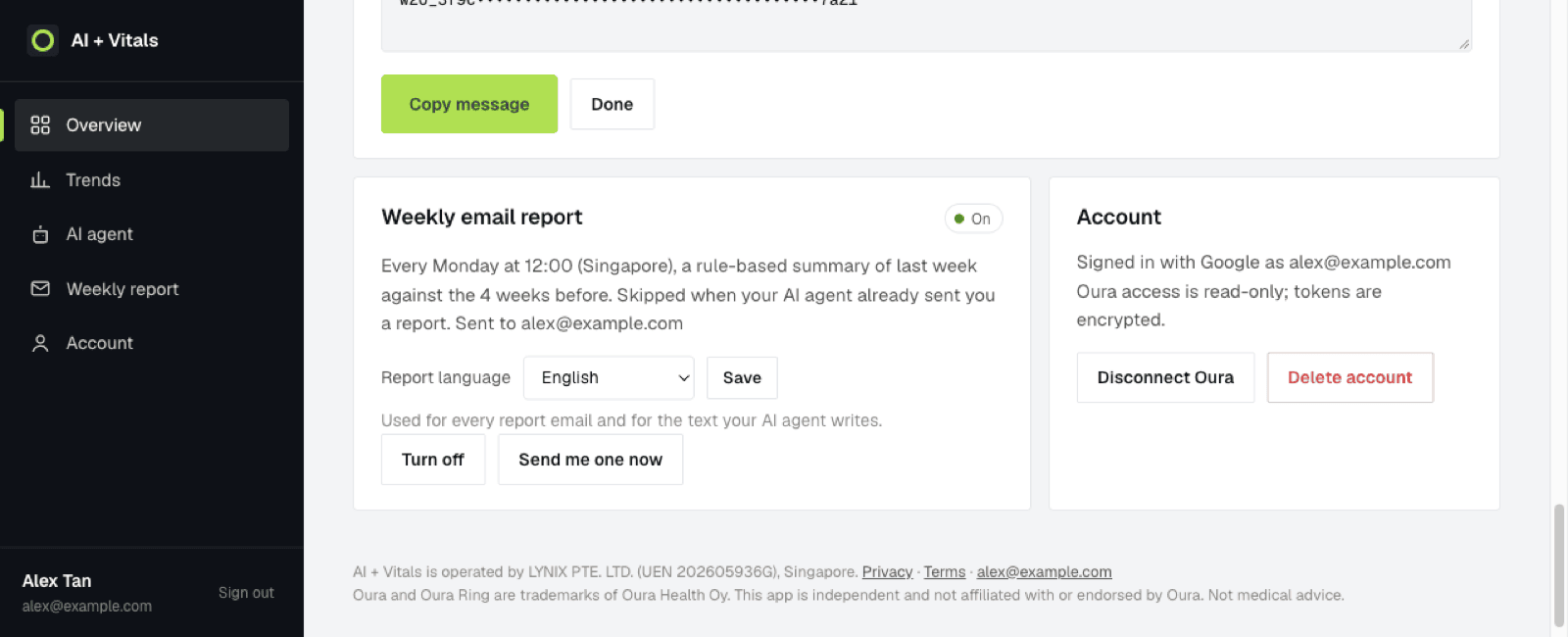
From now on it arrives every Monday morning. As a backup, turn on Weekly email report on your dashboard: if your agent misses a week (for example your computer was off), we send a simpler automatic summary at 12:00 Singapore time instead.
Change the report language
Reports come in English, 简体中文, 繁體中文, Bahasa Melayu, Italiano, Español, Deutsch or Français. Pick yours under Weekly email report → Report language and click Save. Both the email and the text your agent writes switch to it from the next report, with no need to paste anything again.
Want a daily report instead?
Tell your agent: "Change my Oura report to every day at 08:00." We send at most one email per day.
Using ChatGPT
The ChatGPT app's scheduled tasks can't use a private token to call other websites yet, so they can't fetch your Oura data. Two options:
- Codex (OpenAI's coding agent, included with ChatGPT plans): paste the same message into Codex on your computer. It sets up a scheduled job there, so your computer needs to be on at report time.
- No agent at all: keep Weekly email report turned on and you still get the automatic summary every Monday.
Questions
Is my health data safe?
We don't store your Oura health data: it is read from Oura when you open the dashboard or when your agent asks for it. Oura access is read-only and encrypted. Your agent sees your data only because you gave it the token, and the AI company behind your agent (for example Anthropic for Claude) processes it under its own terms. See our privacy policy.
How do I stop the reports?
Click Revoke agent access on your dashboard: your agent can no longer read your data or send emails. Turn off Weekly email report to stop the automatic Monday summary too. You can also delete your scheduled task in Claude.
Does this replace a doctor?
No. The report spots trends in your Oura data and suggests simple habits. It is not medical advice. If you feel unwell, see a doctor.
Does it cost anything?
AI + Vitals is free during the private beta. You need your own Oura Membership and your own Claude or ChatGPT plan.